Configuring the extension
In order to effectively develop applications with the extension, you must configure it to point to a Teracloud Streams install.
Note
You can scope the extension configuration to the user, environment (container or remote host), or workspace in VS Code settings.
Required: Configuring Streams Install Path
Without pointing to an install, the extension will not be able to:
- Provide code completion suggestions
- Provide function and operator documentation
- Build or run applications
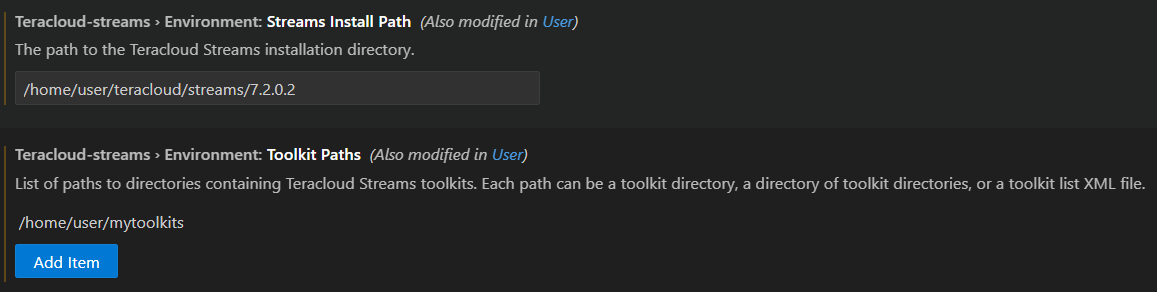
To configure the install path:
- Click here to open the setting in VS Code, or navigate to Settings in VS Code and search for
streamsInstallPath - Double-check the scope you want the setting at:
User,Remote, orWorkspace - Type in the location of the Streams install
Configuring Toolkit Paths
After the Streams Install Path is configured, the extension will load the toolkits provided with the install. You can add additional Toolkit Paths to enable the extension to discover custom and third-party toolkits automatically. These toolkits provide additional operators and functions you can use in your SPL applications.
Tip
You can configure multiple toolkit paths if your development spans across shared or versioned toolkit directories.
Example: Settings with paths configured
Next steps
If you already have an application to work on, you can start leveraging the extension by opening an SPL file.
See the steps in the Creating a project or application section.