Running distributed applications
Submit applications to a runtime environment for distributed execution across multiple hosts, then monitor and manage them all within VS Code. This mode is ideal for deploying in a test or staging environment.
Running Streams instance required
You will need a running Streams instance before you can submit distributed applications. See Managing instance lifecycle on how to create and start one if needed.
Submitting an application
There are several ways to submit an application to a Streams instance:
- In File Explorer, right-click the SPL file containing your application
- Click Build and Submit
- Configure any submission options in the form
- Click the Submit Job button
- In File Explorer, right-click the SAB file created after building your application
- Click Submit Job
- Configure any submission options in the form
- Click the Submit Job button
- Click on the (Streams Explorer) icon in the Activity Bar
- Hover over the name of the instance you want to submit the app to
- Click the (Submit Job) icon
- Configure any submission options in the form
- Click the Submit Job button
- Open the SPL file containing your application
- Click the (Streams Development) icon in the Activity Bar
- Click the (Submit) icon
- Configure any submission options in the form
- Click the Submit Job button
Once a job is running, you can view its graph, inspect logs, or cancel it.
Viewing the job graph
Running jobs can be viewed as a directed graph in the Streams Console:
- In the (Streams Explorer) view, navigate to the instance containing the job
- Hover over the job you want to view the runtime graph of
- Click the (Show Job Graph) icon
- Click Open in the dialog box to confirm
Viewing job logs
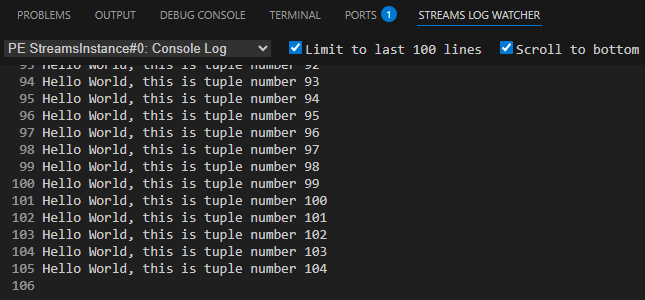
View PE and job logs directly in VS Code via the Streams Log Watcher panel:
- Enter Ctrl+Shift+U (Windows/Linux) or Cmd+Shift+U (macOS) to open the OUTPUT panel
- Click the STREAMS LOG WATCHER tab
You can then select which PE, job, or log channel to view.
Downloading job logs
- In the (Streams Explorer) view, navigate to the instance containing the job
- Hover over the job you want to download logs for
- Click the (Download Job Logs) icon
- Enter the file to save the logs to
- Click the OK button
Canceling a job
- In the (Streams Explorer) view, navigate to the instance containing the job
- Hover over the job you wish to cancel
- Click the (Cancel Job) icon
- Click Yes in the dialog box to confirm